

1) Import via local network
- individual server configurations,
- one or more subscriptions,
- or everything at once.
- iPhone/Android with Happ installed and Apple TV must be on the same Wi-Fi network.
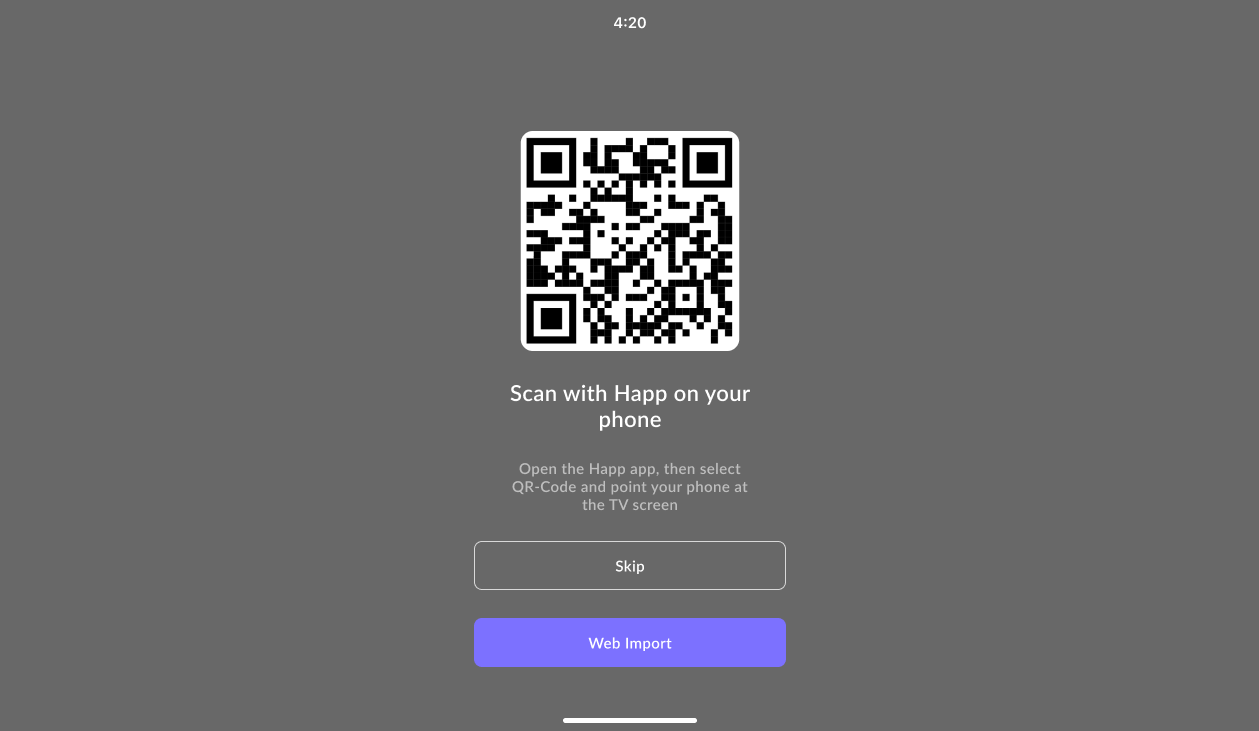
- Scan the QR code on the TV screen using Happ on iOS/Android.
- Open Happ on iOS/Android.
- Scan the QR code from the TV screen.
- Select what to send (configurations/subscriptions) and confirm.
- Do not close the import screen on the TV until the transfer is complete — otherwise the connection may be interrupted and data may be imported partially or not at all.
- When transferring from iOS, the system will prompt for permission to connect to the local network. If you deny it, the system dialog will not appear again (a quirk of Apple’s API), and local requests will be blocked. See the solution in the “Features and Limitations of tvOS” section.
- On success, the import screen closes and processing of received data begins (e.g., fetching configurations from subscription URLs).
- On failure (unable to parse configuration or fetch subscription data), the app will display an error message.
- The QR code is updated automatically.
2) Web import via remote server
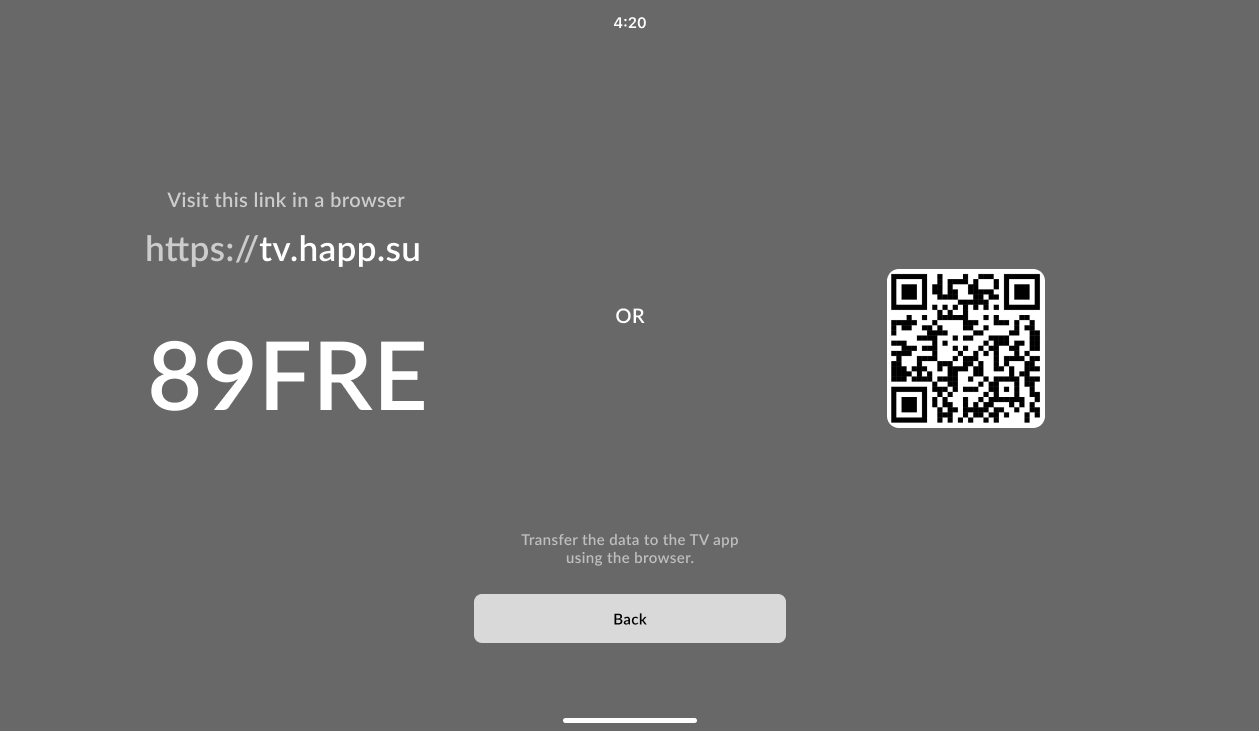
- On the import screen, select “Web Import”.
- Choose one of the options:
- Open tv.happ.su in any browser, enter the temporary code from the TV screen, add the data, and click “Send”.
- Scan the QR code from the TV screen — it contains both the URL and the temporary code.
- Do not close the import screen on the TV until the operation is complete — otherwise the connection may be closed and data may not be delivered fully.
- The QR code is updated automatically.
- After successful transfer, the app will hide the import screen and perform the same actions as with local network import.
3) Connection
After successful import, the list of received subscriptions/servers will appear on the home screen. The first available server will be selected automatically. Standard operations are supported:- server selection,
- connect/disconnect,
- ping,
- subscription update.
4) Settings

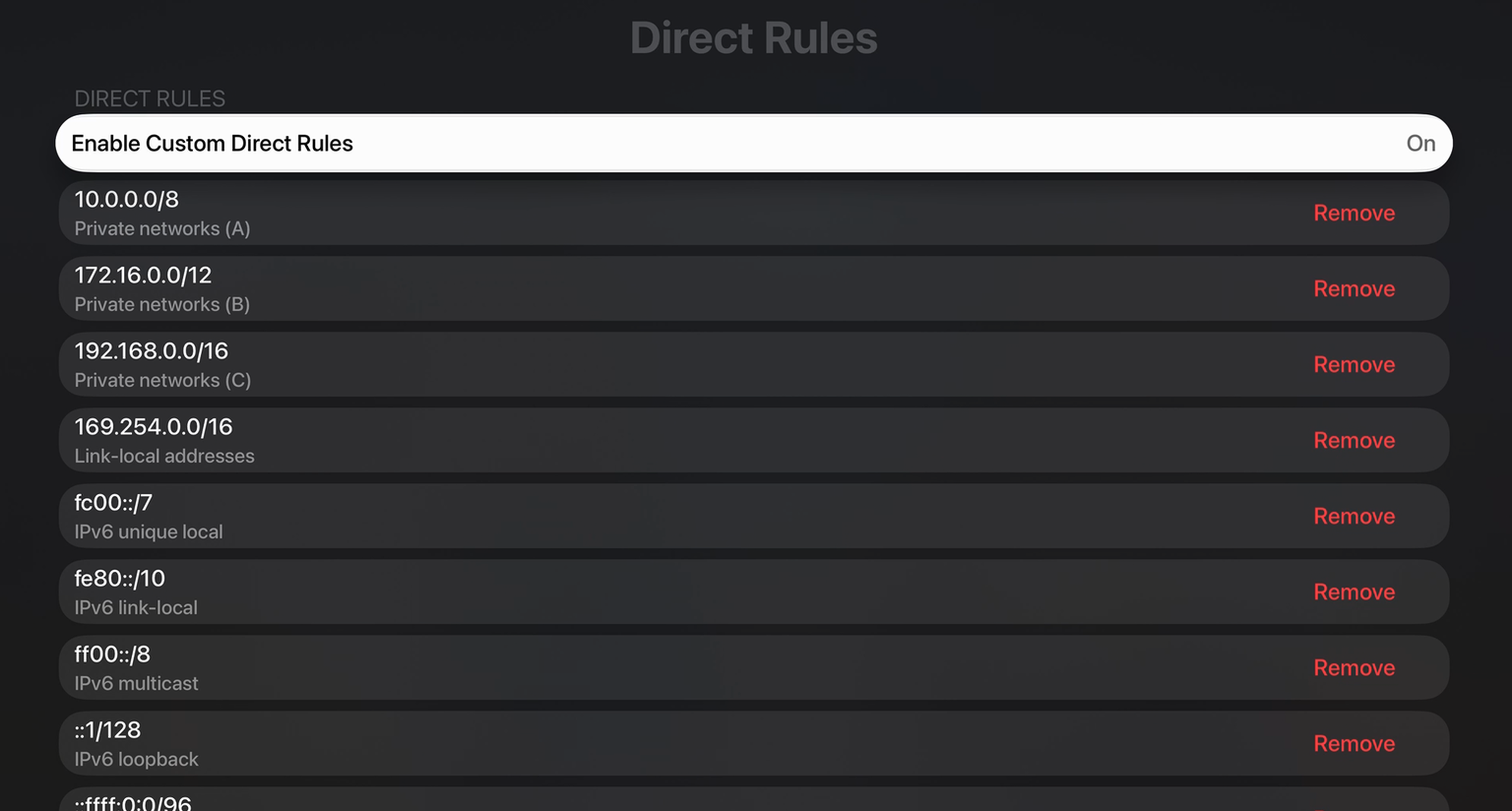
- A default Direct Rules list is built in.
- You can enable/disable and edit them for your needs.
5) Features and Limitations of tvOS
Storage and data cleanup- Apple TV (tvOS) does not have “guaranteed persistent” storage for applications. When memory is low, the system may automatically delete saved app data (configurations/subscriptions). It is recommended to keep important data in subscriptions/on a server and be able to quickly re-import it.
- tvOS (like iOS) strictly limits memory consumption for network tunnels — about 50 MB. If the limit is exceeded, the system may terminate the tunnel process (essentially “disconnecting” the connection). This is a system limitation.
- iOS has a known quirk (API bug): if you selected “Don’t Allow” on the first request for local network permission, the system dialog will not appear again. Even after enabling the permission in app settings, iOS may continue to block such connections.
- Solution: Reinstall the app on your iOS device (the system will show the dialog again) or use Web Import.
- If “over-the-air” import fails due to permissions/network issues — use Web Import right away: it is reliable and does not depend on local restrictions.
- To minimize data loss risk, keep current subscriptions and re-import them to TV in just a couple of steps when needed.